
Store screens
Create a slide
pro.pyryx.com/ecransSee this screen in the demo
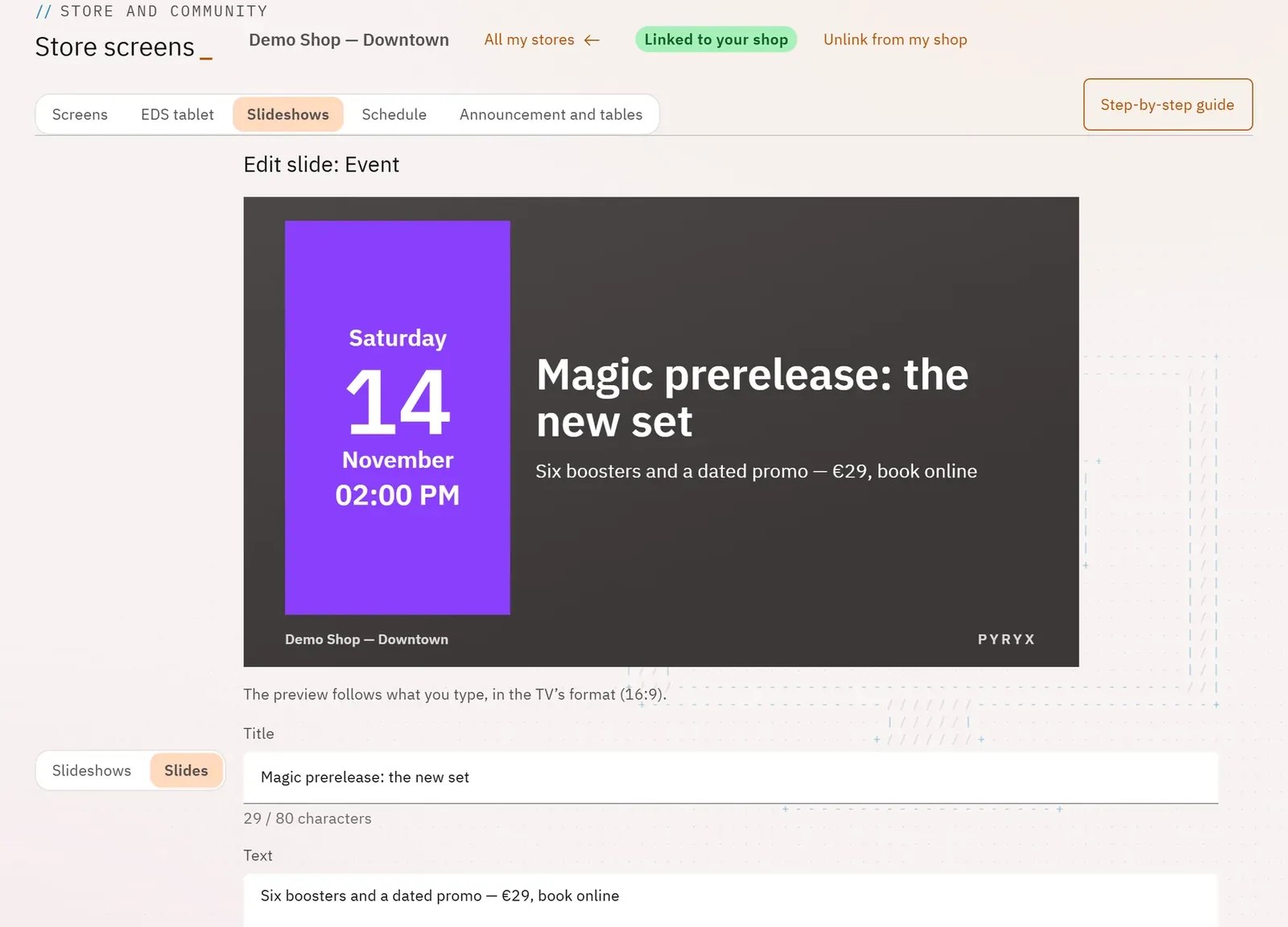
Each slide is set up with a preview that follows what you type, exactly in the TV’s format. A listing from your stock becomes a slide with a photo, a price and a QR code to buy it.
 123
- 1The preview in the TV’s format
- 2Search for a listing
- 3The listing to show
What you can do
- A form specific to each kind: title, text, image, listing to show, an event’s date, a QR code’s destination.
- An image cropped to the TV’s format before it is uploaded.
- One of the shop’s own videos, kept on the TV and played even without internet, or a YouTube video from its link.
- The time on screen and an accent colour.
Step by step
- In the Slideshows tab, switch to the Slides view, then tap New slide.
- Choose the kind, for example Product.
- Choose the listing (Search the listings if it is not in the list), set Time on screen (seconds).
- Tap Save the slide, then Add to a slideshow and publish that slideshow.