
Stock and listings
Importing a stock file
pro.pyryx.com/stock/importSee this screen in the demo
You load into a stock binder a file exported from another selling site, or your own spreadsheet, and you can put it on sale at the file’s price. Nothing is added before you have seen the preview.
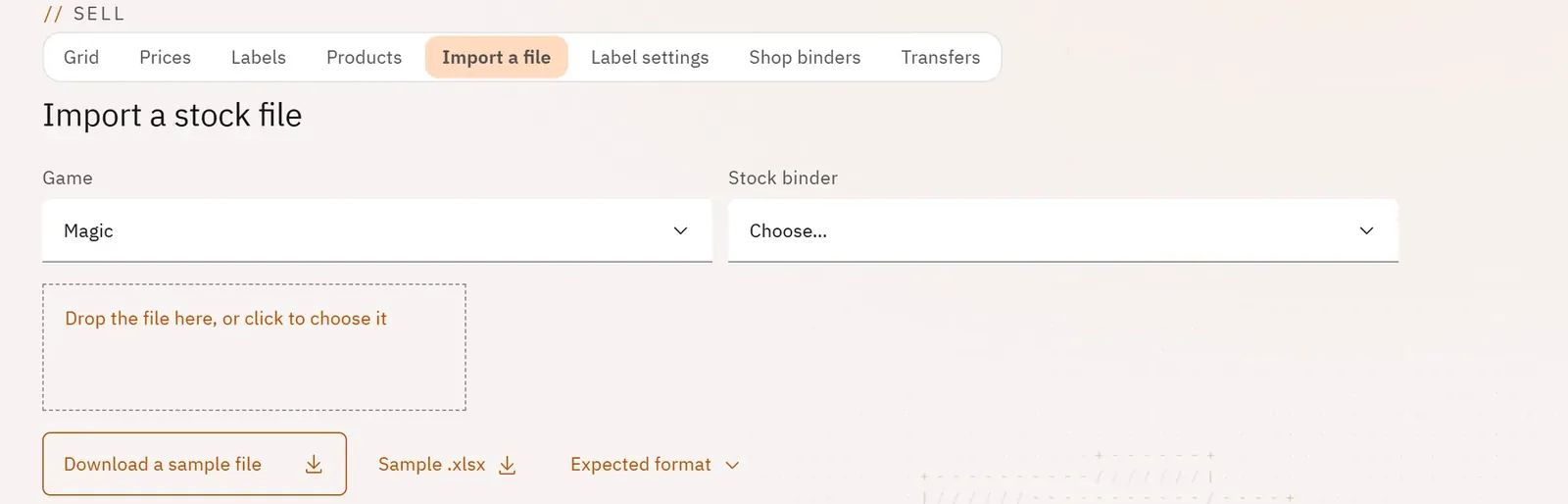 1234
- 1The game
- 2The stock binder
- 3The file to drop
- 4The example file
What you can do
- Choose the game and the stock binder, or create a new stock binder.
- Drop a CSV or Excel file; download an example file and the expected format for the game.
- Have the format recognised automatically, then correct the column mapping (name, quantity, edition, number, language, finish, condition, price…).
- See the first five rows as they will go in.
- Put on sale at the file’s price, and publish straight away.
- Read what would be added: rows kept and rows left out by reason, copies, merged rows, value; download the rows left out.
- Add to the binder in batches, stop, resume an interrupted import.
Step by step
- Open the Import a file tab.
- Choose the Game and the Stock binder.
- Drop your file.
- Correct a column if it was guessed wrong.
- Tick List for sale at the file’s price if you wish, then Check the file.
- Review “What the database would add”, then Add to the binder.
- Click See the stock.