Stock and listings
Labels
pro.pyryx.com/stock/etiquettesSee this screen in the demo
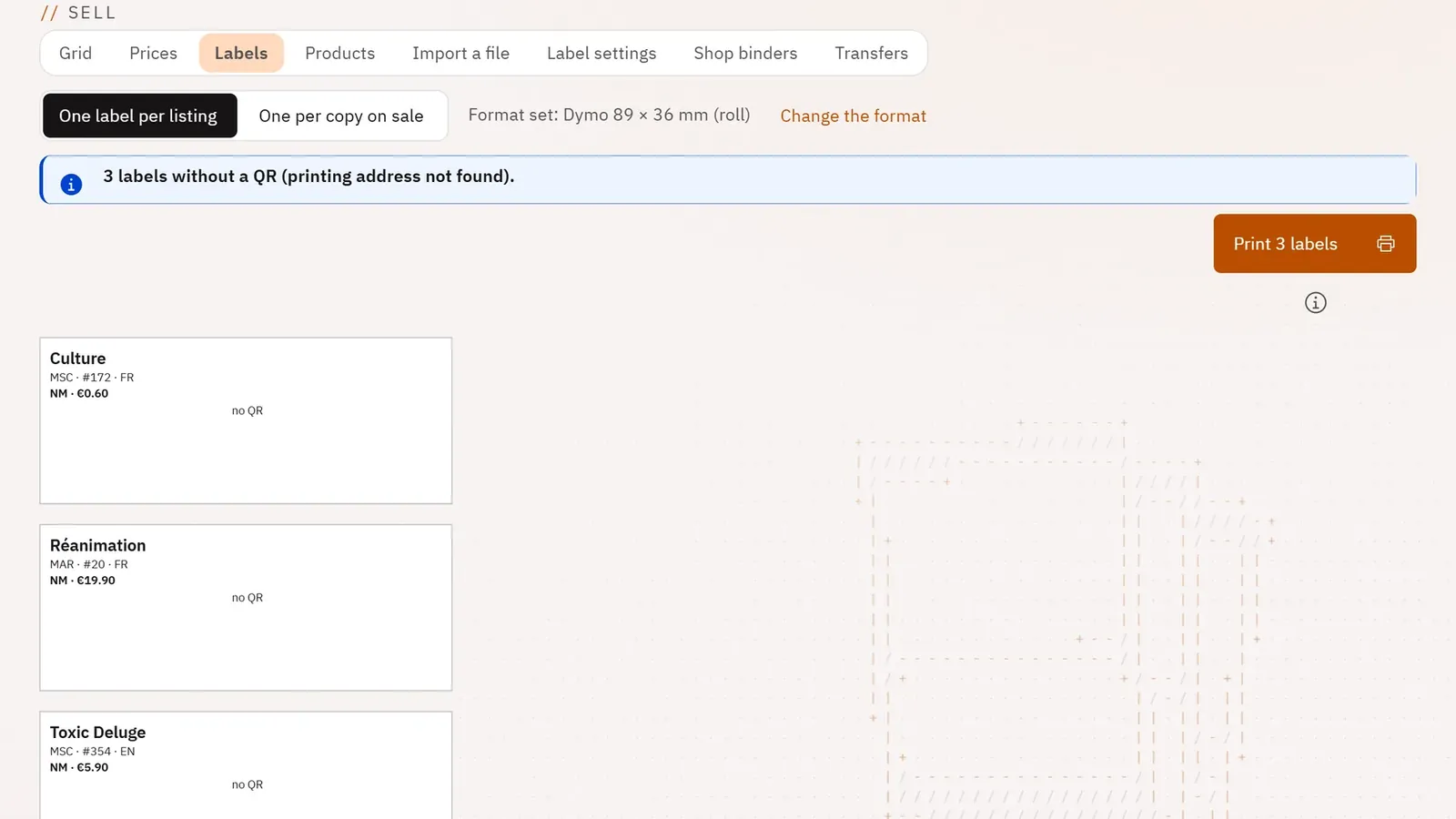
You print price labels with a QR code for your cards in the display case or in binders, in your printer’s format. The customer scans the QR code and finds the card on pyryx.com.
 1234
- 1One label per copy
- 2The format set
- 3Print
- 4The actual-size preview
What you can do
- Print one label per listing, or one per copy on sale.
- See the actual-size preview before printing.
- Be warned of a listing that is no longer in stock, a listing not on sale, a label without a QR code or a name too long for the format.
- Set the format once (Dymo 89 × 36 mm roll, Brother 62 × 29 mm roll, A4 sheet of 3 × 7) and the offsets that correct the printer’s margins.
- Choose whether or not to show the price and the condition on the label.
Step by step
- In the grid, tick the listings to label.
- Click Print labels.
- Choose One label per listing or One per copy on sale.
- Click Print … labels, at 100% scale, without margins or headers.
- The first time: Label settings, choose the Format, print a test, adjust the offsets, then Save.