
Store screens
The EDS counter tablet
pro.pyryx.com/ecransSee this screen in the demo
The EDS tablet sits on the counter, facing your customer. When idle, it plays a slideshow; during a buyback, it shows the current slip and the customer signs their offer on it. It is set up entirely remotely.
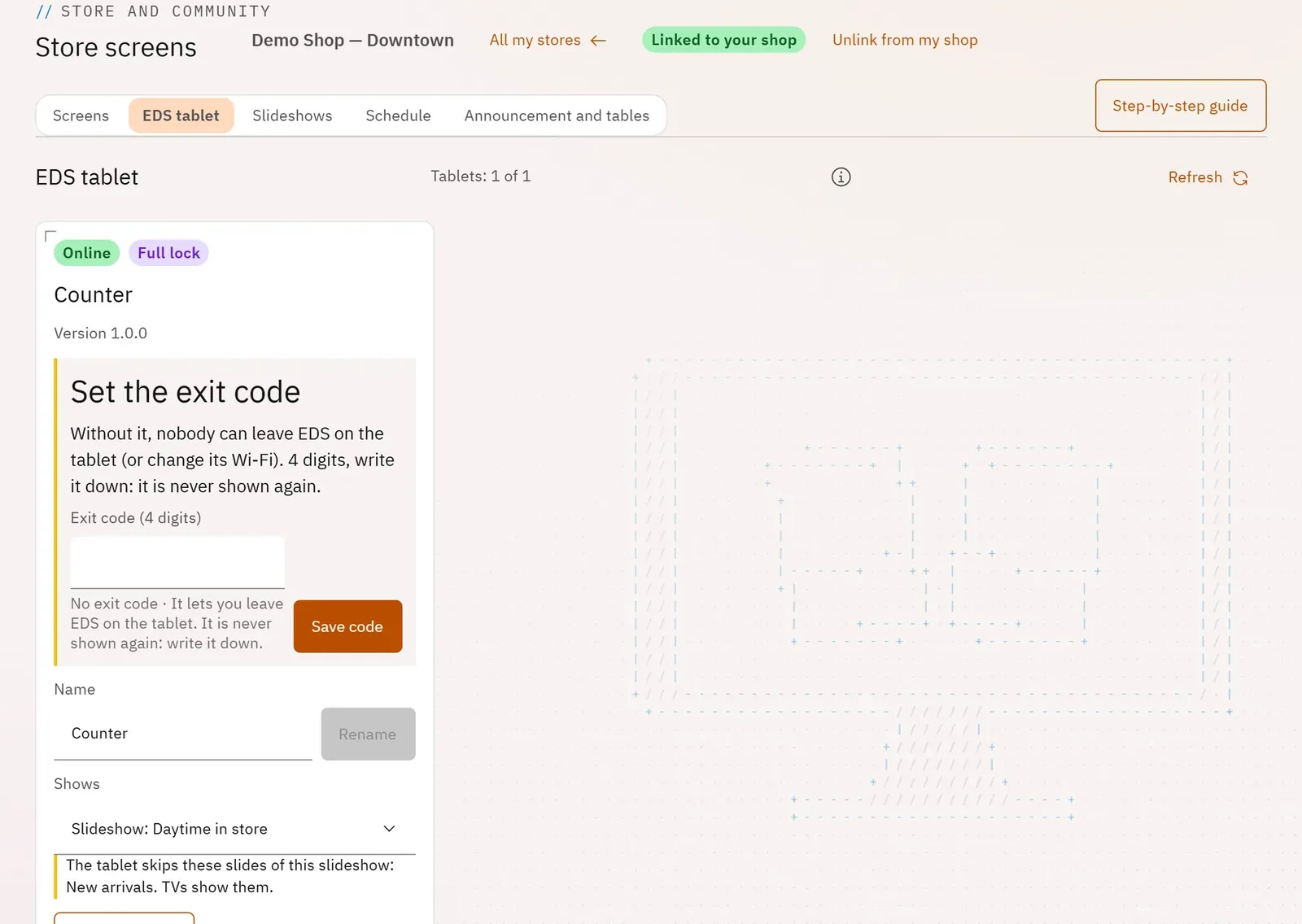 12
- 1The number of tablets
- 2Set the exit code
What you can do
- Install a new tablet with a QR code (it sets itself up and keeps only EDS), or pair one with its code.
- Choose its slideshow or its schedule, rename it, set its exit code.
- Follow its status: online, lock, version, update available.
- Remote settings: brightness, on/off times, volume, Wi-Fi networks, restart, update.
- Release the tablet (it becomes an ordinary tablet again) or Remove (if it is lost or stolen).
Step by step
- In a store, open the EDS tablet tab, then I have a new tablet.
- Tick the box confirming that the tablet will be wiped, choose the Wi-Fi, then Show the installation QR.
- Reset the tablet, tap the first screen six times, then scan the QR.
- Back in Pro, choose its Slideshow, enter an Exit code (4 digits), then Save code.
- Tap Tablet settings to adjust the screen, its hours and the Wi-Fi.