
Store screens
The screen schedule
pro.pyryx.com/ecransSee this screen in the demo
Have the display change by itself through the day: today’s slideshow, tournament night, the store logo or a black screen at closing time. The TV follows its schedule on store time, even without a connection.
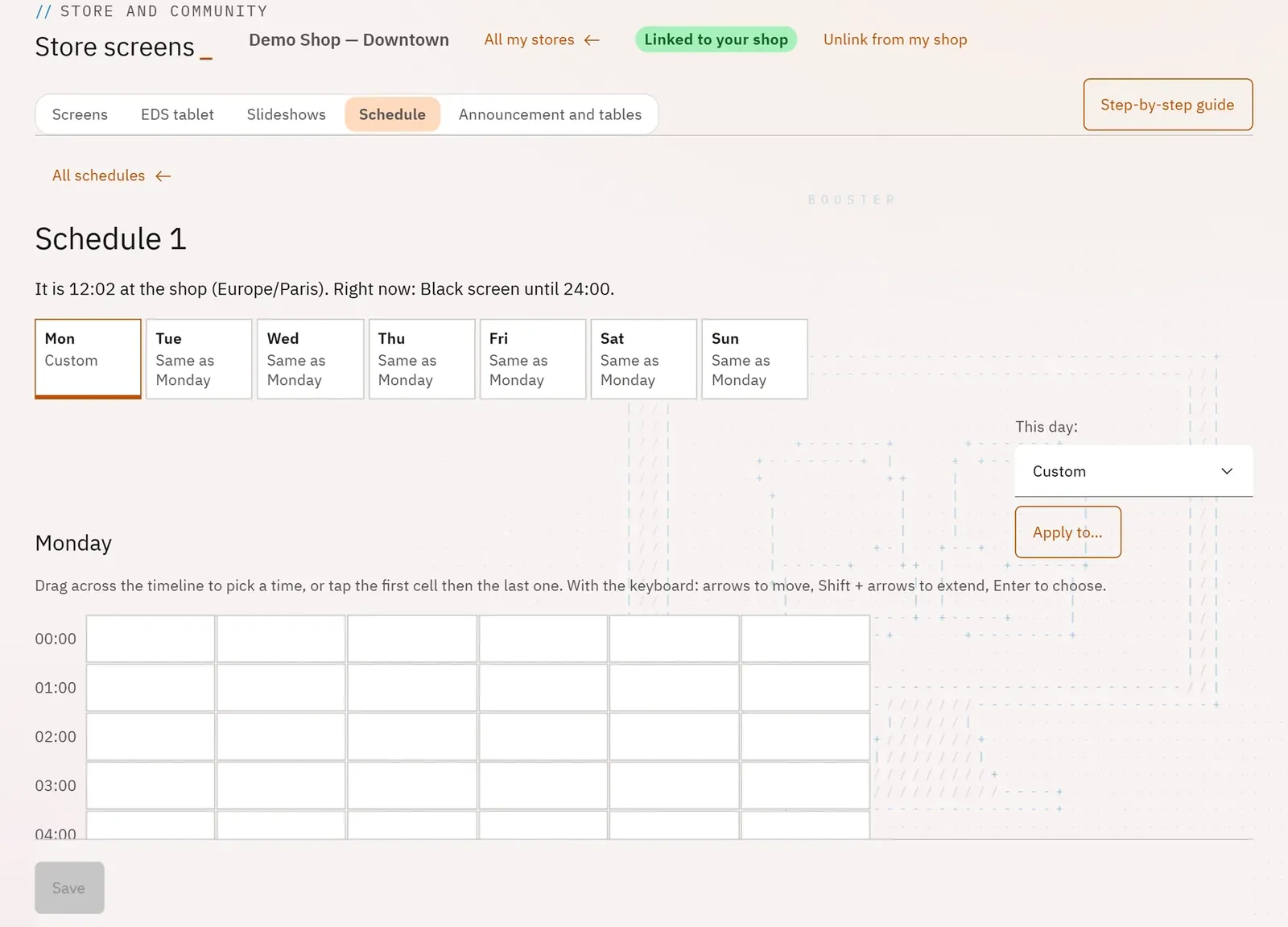 123
- 1The days of the week
- 2Copy a day
- 3Save
What you can do
- Named schedules that can be renamed, duplicated or deleted; each one says which screens use it.
- For each day: “Custom” or “Same as Monday”; Apply to… to copy a day.
- A timeline in 10-minute steps, and the same day as a list of time slots.
- For each time slot: a slideshow, a black screen or the store logo.
Step by step
- In a store, open the Schedule tab, then New schedule and Create.
- On the timeline, drag from the start time to the end time (with a finger: tap the start cell, then the end one).
- Choose Slideshow, one of your slideshows, then Confirm.
- Tap Apply to…, tick the other days, then Apply.
- Tap Save, then, in the Screens tab, choose this schedule in the Shows menu of a TV or of the tablet.