
Counter sale
Preparing a counter sale
pro.pyryx.com/comptoir/venteSee this screen in the demo
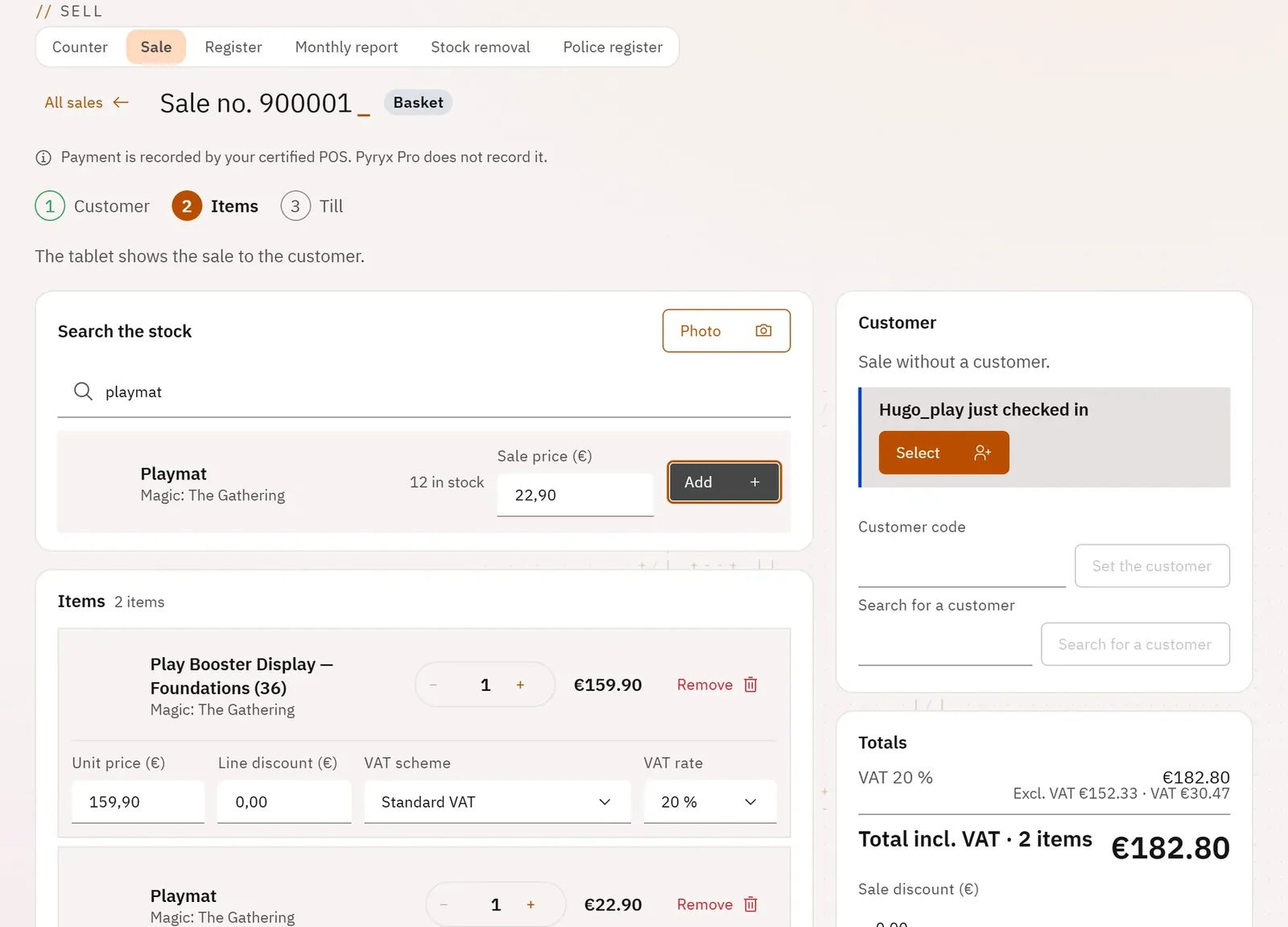
Pyryx Pro prepares the sale on screen, from your stock, with the right VAT for each item. Payment is taken on the shop’s certified POS. What is sold in the shop can no longer be sold online.
 123
- 1Payment stays on your certified POS
- 2Search for an item in the stock
- 3The sale total
What you can do
- Choose the customer: they scan the tablet’s QR code (loyalty and history recognised), or you search for them; or Sale without a customer for a walk-in customer.
- Search for an item in the stock by name, or photograph the cards laid flat.
- Set, line by line, the quantity, the price, the discount, the VAT scheme (VAT on margin or standard) and the rate.
- A discount on the whole sale, the totals per VAT scheme and the total including VAT.
- Show the sale to the customer on the tablet.
Step by step
- Tap New sale.
- Tap Select on the tablet’s customer, or Sale without a customer.
- Type an item’s name in Search the stock, then Add.
- Adjust quantities, prices and discounts, then tap Send to the till.