
Team
Team members
pro.pyryx.com/equipeSee this screen in the demo
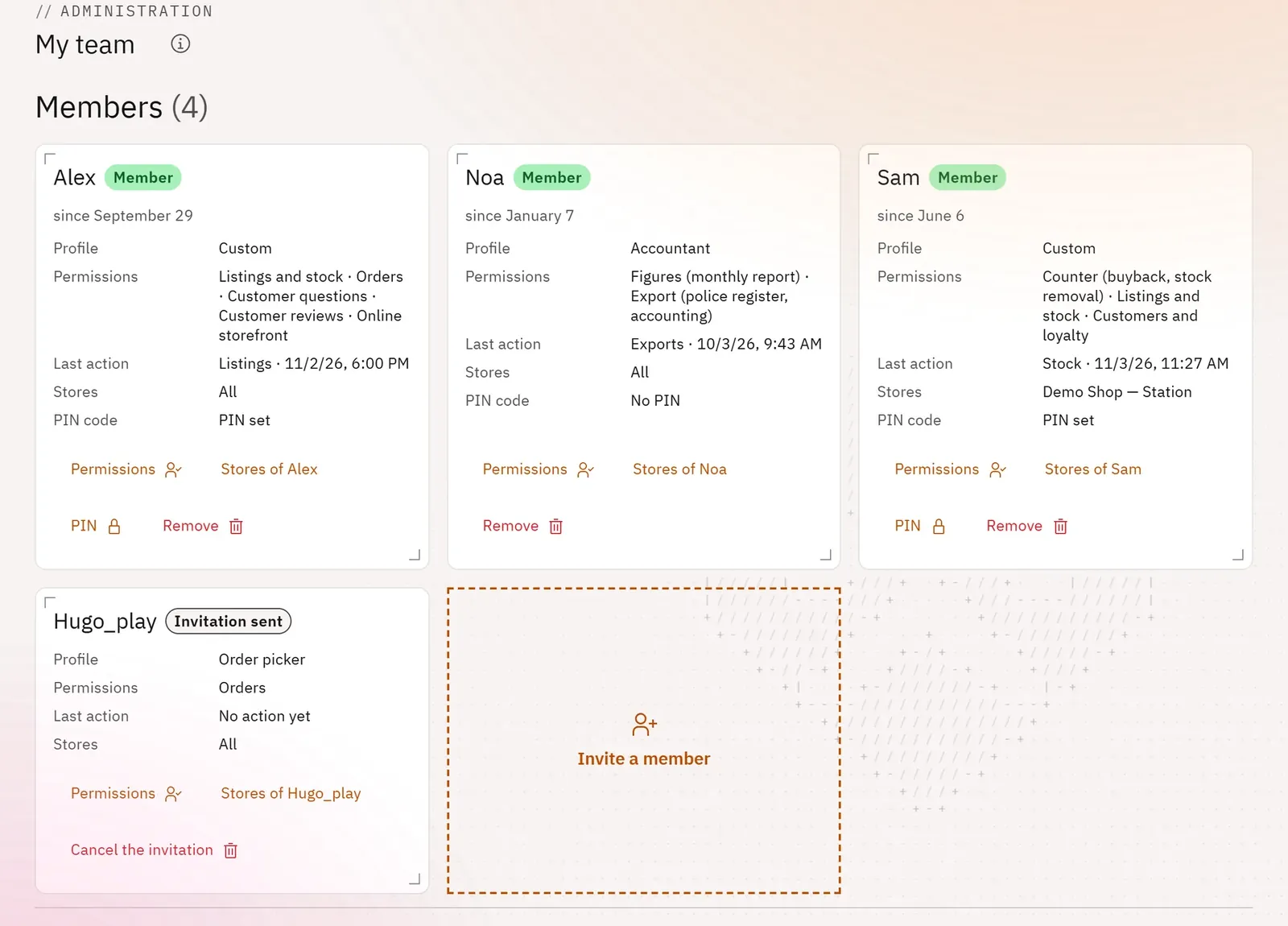
Each employee has their own account and only sees what you entrust to them. You see their profile, their permissions and their last action at a glance.
 123
- 1A member and their permissions
- 2Actions on this member
- 3Invite a member
What you can do
- One tile per person: their profile, their permissions in plain words, their last action and whether they have a PIN.
- Visible buttons: Permissions, PIN, Remove (or Cancel the invitation).
- Limit a member to certain stores (Stores of …).
- Team settings: the shop’s binders that members can access, and the screen lock delay.
Step by step
- Open Team.
- On a member’s tile, tap Permissions.
- Choose a Profile, then adjust the boxes.
- Tap Save.