
Store screens
Set up a TV
pro.pyryx.com/ecransSee this screen in the demo
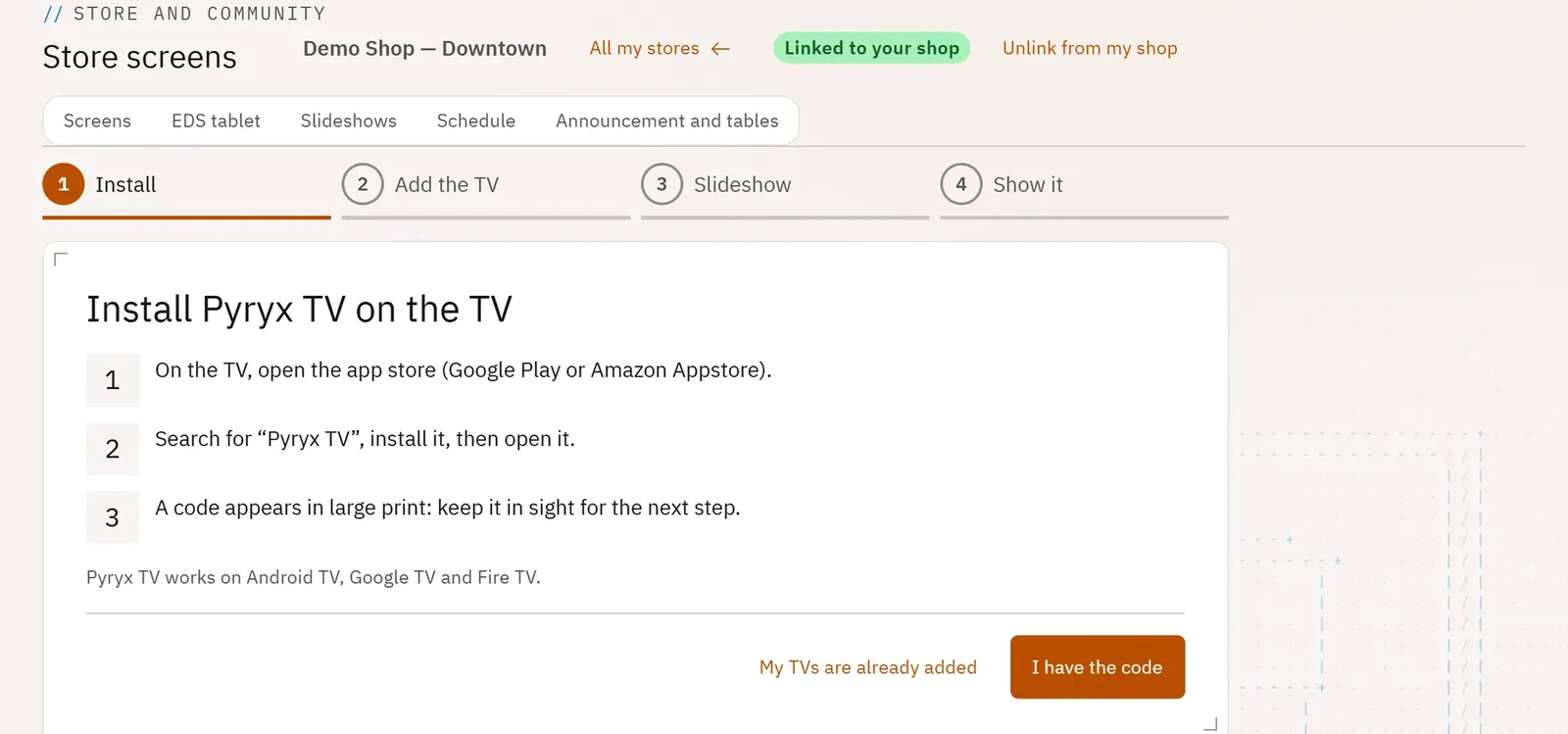
The step-by-step guide connects your first TV and gets a slideshow playing on it in four steps, without knowing anything about the studio.
 12
- 1The current step
- 2Go to the next step
What you can do
- Install step: install Pyryx TV from the TV’s app store; a code appears.
- Add the TV step: enter that code, name the screen (Window, Counter…) and choose what it shows (a slideshow or the games in progress).
- Slideshow step: create a starter slideshow (Welcome, QR code to your Pyryx page, your opening hours) or reuse an existing one.
- Show it step: choose the screens that show it.
Step by step
- In a store, tap Step-by-step guide.
- Install Pyryx TV on the TV, then tap I have the code.
- Enter the Code shown on the TV and the Screen name, then Add the TV.
- Tick the starter slides, then Create the slideshow.
- Tick the screens, then Show it: “It’s on its way!”