
Stock and listings
The stock grid
pro.pyryx.com/stockSee this screen in the demo
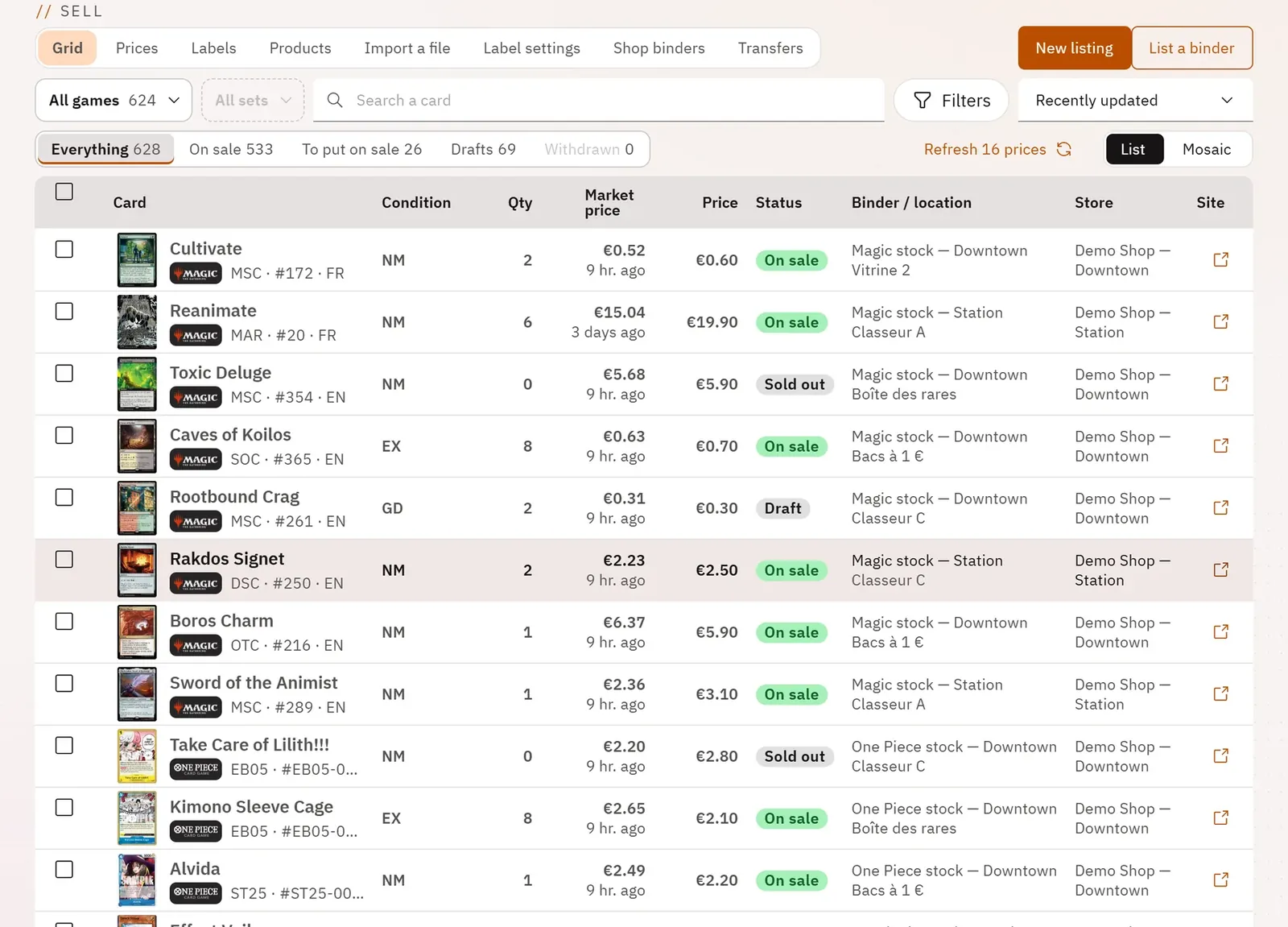
On a single screen you see your online listings and the cards in your binders that are not yet on sale, across all games, with each card’s market price and its date. You tick rows, then act on the whole selection instead of going through the cards one by one.
 1234
- 1The game and the set
- 2A card: its name opens the preview
- 3Market prices to refresh
- 4List or mosaic
What you can do
- Choose the game (a grid of logos, with the number of rows for each) then the set, sorted by year.
- Search for a card by name (keyboard shortcut: the / key).
- Show in one click Everything, On sale, To put on sale, Drafts or Withdrawn, each with its count.
- Filter by condition, language, binder, status, type, cards without a market price, finish, reserved or graded cards; each filter you set stays visible and clears in one click.
- Sort by date modified, set, name, price, market price or quantity; the column headers sort too.
- See for each card: condition, quantity available and reserved, market price with its date, price, status, binder and location, store, link to its page on pyryx.com.
- Switch from the list to the mosaic of images; hovering over a thumbnail shows a large image.
- Tick rows, the whole page, then all the rows the filters show; the bottom bar then offers labels, transfer and “Act on the selection…”.
Step by step
- Open Stock and listings in the menu.
- Click All games, choose the game’s logo, then choose the set.
- Choose To put on sale to see the cards in your binders that are not online yet.
- Open Filters to narrow down by condition or language.
- Tick the rows you want, or Tick the page, then Select all … rows matching the filters.
- Click Act on the selection…, Print labels or Transfer.