
Today
Today, the day’s dashboard
pro.pyryx.comSee this screen in the demo
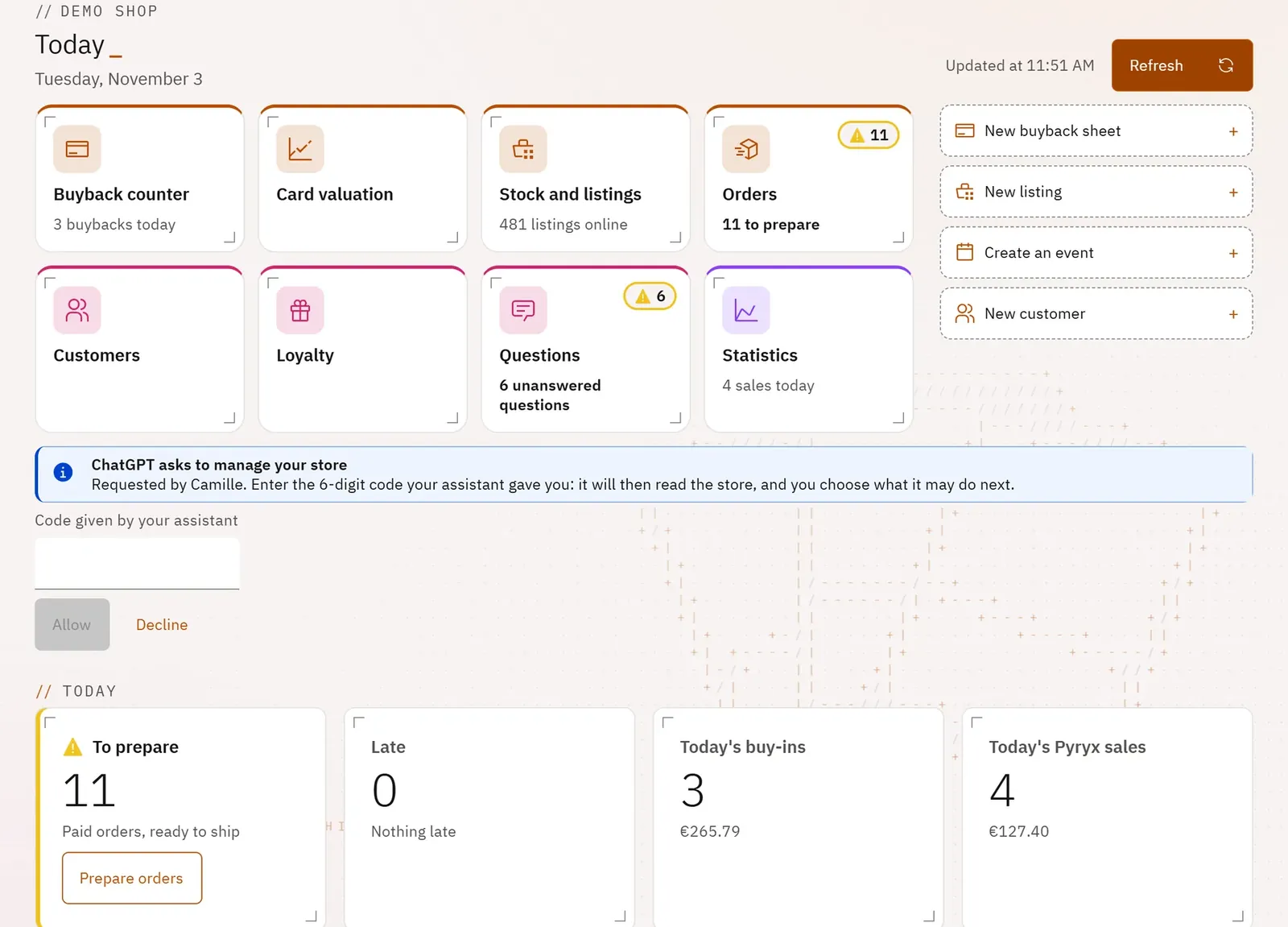
This is the first screen of Pyryx Pro. It can be read in three seconds: what is waiting for action (orders to ship, delays, questions, messages, reviews) and what has happened during the day. Each tile leads straight to the action.
 123
- 1The title and the time of the last update
- 2Quick access to your features
- 3The shortcuts for creating
What you can do
- The large “Quick access” doors to your main features, each with its line for the day (buybacks, listings online, screens on) and a badge when action is due.
- The “Create” shortcuts: new buyback slip, new listing, new event, new customer.
- The tiles under “Today”: To prepare, Overdue, Today’s buy-ins, Today’s Pyryx sales, Unanswered questions, Unread messages, Reviews without a reply, Listings online, Store screens.
- An automatic update every minute while the screen is open, and the Refresh button.
- Alerts when needed: an invitation to a team, a request from an AI assistant to manage the shop, the last step of the payment account.
Step by step
- Open Pyryx Pro: the “Today” screen appears.
- Read the tiles marked with a coloured stripe first: they are waiting for action.
- Tap the tile’s button, for example Prepare orders or Reply.
- To start a task, tap a “Create” shortcut, for example New buyback slip.