Store screens
Slideshows
pro.pyryx.com/ecransSee this screen in the demo
Put together what your TVs show: new arrivals, promotions, opening hours, the tournament in progress. You prepare at your own pace, and nothing reaches the screens until you publish.
 123
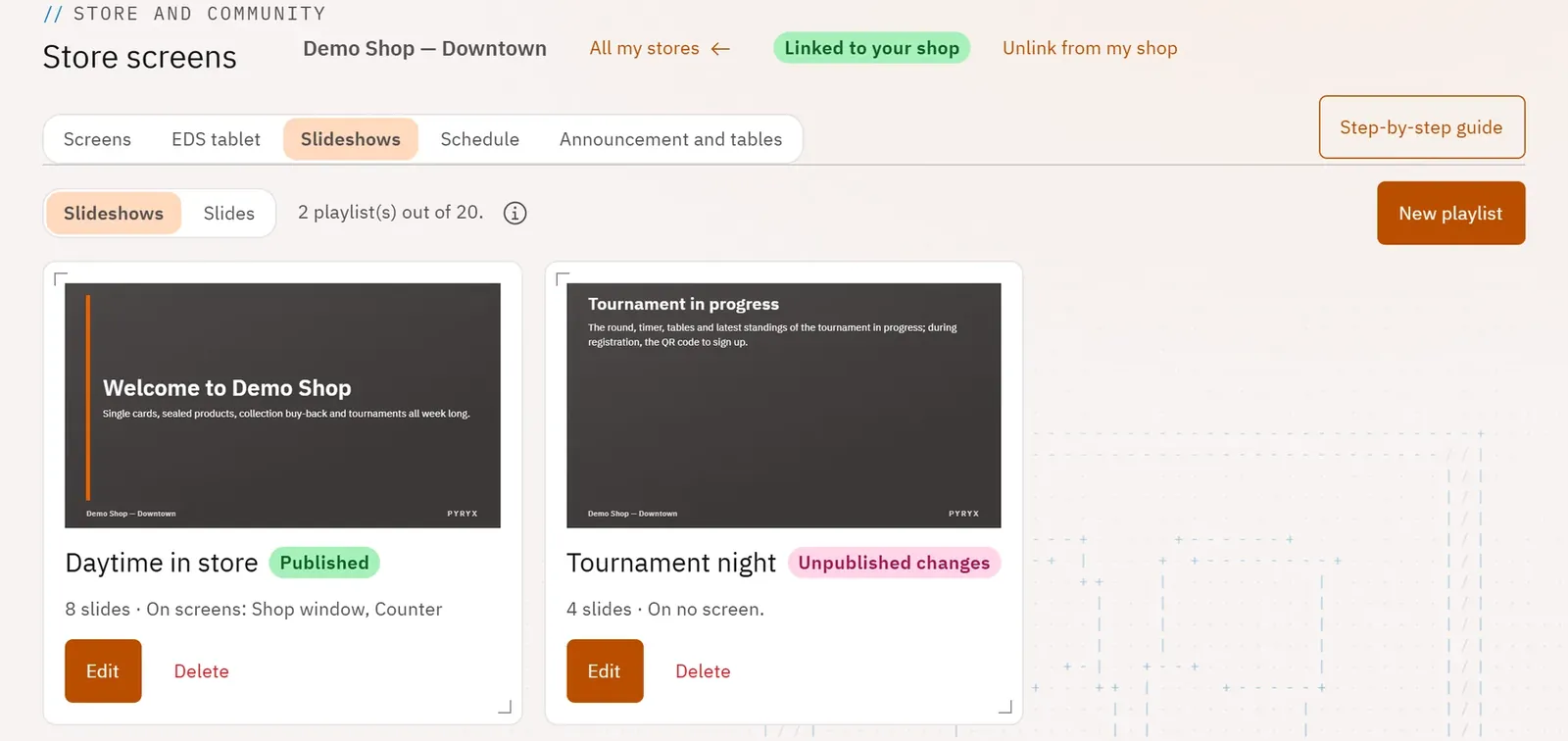
- 1The Slideshows and Slides views
- 2Create a slideshow
- 3A published slideshow
What you can do
- Create, edit and delete slideshows; see which screens each one plays on.
- Put the slides in order (Move up, Move down, or drag with the mouse) and set how long each one lasts.
- A looping preview, in the TV’s format.
- Publish, then tick the screens that show the slideshow.
- Twelve kinds of slide: text, image, product for sale with a QR code, event, QR code, opening hours, new arrivals, monthly ranking, club welcome, video, YouTube video and “Store tournament”.
Step by step
- In a store, open the Slideshows tab.
- Tap New playlist, give it a name, then Create.
- Tap Add a slide, choose one, then Add.
- Check the Looping preview, then tap Publish.
- Tick the screens under “The screens that show this playlist”.