Store screens
The store screens
pro.pyryx.com/ecransSee this screen in the demo
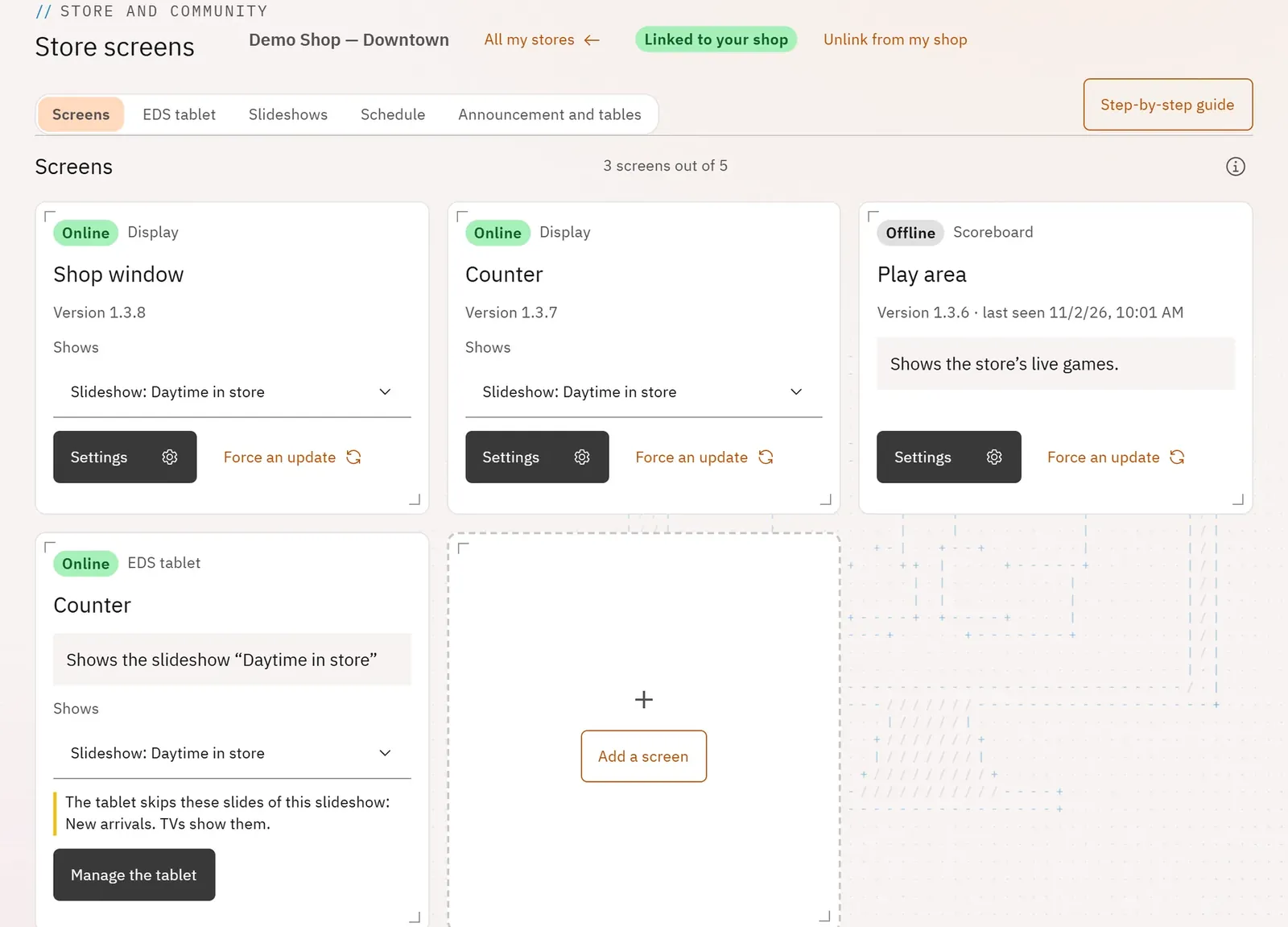
Control every TV in the store from Pro: you see whether each one is on and change what it shows without leaving your spot. The TVs use the Pyryx TV app (Android TV, Google TV, Fire TV).
 1234
- 1The store’s tabs
- 2A TV and its status
- 3What it shows
- 4The step-by-step guide
What you can do
- One card per TV: Online or Offline, its version, its name and its mode.
- The Shows menu: nothing, a slideshow or a schedule.
- Force an update on a TV.
- In Settings: the name, the mode (Display, Scoreboard for the scoreboard, All options), “Stay on Pyryx TV” (opens at power-on, locks the Back and Menu buttons) and the exit code.
- Link a store to your shop so that your team can run it (Your stores page).
Step by step
- Open Store screens, then Open screens on the store you want.
- On a TV’s card, open the Shows menu and choose a slideshow.
- To lock it on Pyryx TV, tap Settings and tick Lock the Back and Menu buttons.
- To add a TV, tap Add a screen: the step-by-step guide opens.