
Security and assistants
Your AI assistant (Claude; ChatGPT coming soon)
pro.pyryx.com/reglages/securiteSee this screen in the demo
Talk to your shop as you would to an employee, by keyboard or by voice: “How many orders are there to prepare today?”, “Set the Sol Ring to €4.50”. You decide, action by action, what it can do.
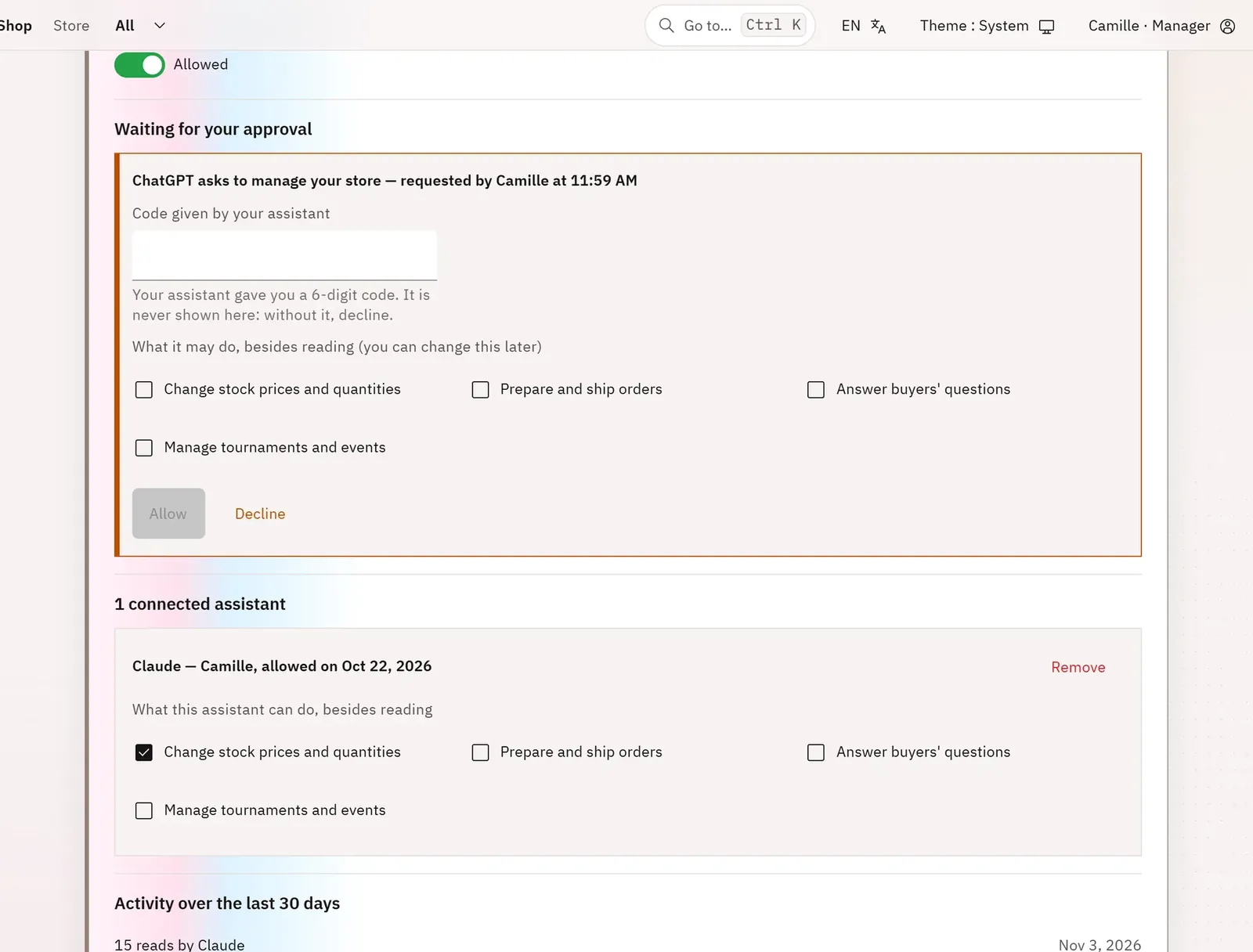 123
- 1The pending access request
- 2Allow with the code
- 3The actions entrusted to the assistant
What you can do
- Allow or cut off the assistants’ access to read the shop.
- Approve an access request with the code the assistant gives you, or refuse it.
- For each assistant, tick what it can do on top of reading: change prices and quantities, prepare and ship orders, reply to buyers, manage tournaments and events.
- See the last 30 days of activity, and remove an assistant.
- A guide to connect Claude; ChatGPT is coming soon.
Step by step
- In Claude, add the Pyryx connector (or tap Add Pyryx to Claude in one click in the guide).
- Sign in with your Pyryx account and say: “Open my Pyryx shop”. The assistant gives you a 6-digit code.
- On Today (or in Settings › Security), enter this code in Code given by your assistant, then tap Allow.
- Tick what it can do on top of reading.